How to Convert Your File to CSV
How to Convert Your File to CSV
Dorah accepts CSV files only for imports.
If your data currently lives in Excel, Google Sheets, or Word, you’ll need to convert it before uploading.
This guide walks you through how to do that — and how to prepare your file so Dorah can read it accurately.
Step 1: Match Your Column Headings (Important)
Dorah uses column headings to understand where each piece of information should go.
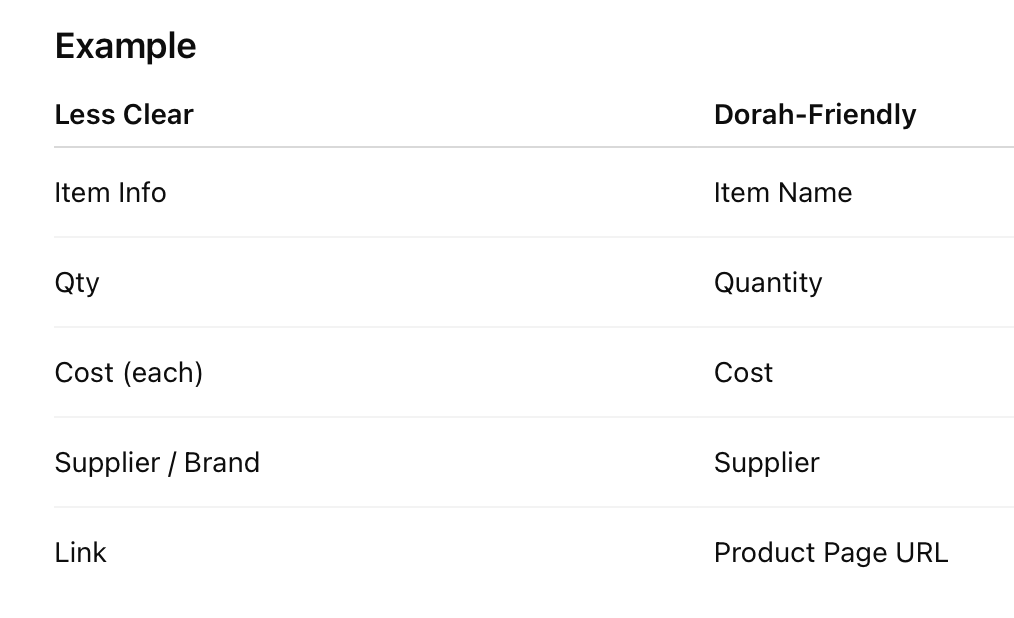
For best results, rename your column headers to match Dorah’s dataset fields as closely as possible before saving your file as a CSV.
This helps Dorah:
Place data in the correct fields
Reduce failed rows
Avoid manual clean-up after import
You don’t need to match everything perfectly — clarity matters more than perfection.
Good practice
Use clear, literal headings (avoid abbreviations)
Keep one type of data per column [ ie: brand not supplier / brand ]
Use numbers only in numeric fields (e.g. Quantity, Cost) for example: ie: 22 not 2 of each (22 total) The explanation like this one: 2 of each (22 total) should live in notes and the end total should live in the quantity column, as just a number 22.
Notes
Column order does not matter
Not all fields need to be filled
Extra columns can be ignored if they aren’t mapped
IMPORTANT: CSV files support one sheet only.
If your Excel file has multiple tabs, you’ll need to convert and upload each tab as a separate CSV file.
This applies to:
Excel workbooks with multiple sheets
Google Sheets with multiple tabs
Any file where data is split across tabs (e.g. Dining, Cabin, Crew)
Each tab must be saved and uploaded individually.
Step 2: Convert Your File to CSV
If you’re using Excel (.xlsx)
Open your file in Excel.
Check that:
Column headers are clear and correctly named
Fields like Quantity and Cost contain numbers only
Click File → Save As.
Choose CSV (Comma delimited) (.csv) from the file format options.
Save the file.
Upload the CSV into Dorah.
Excel may warn you that some formatting will be lost. This is normal and won’t affect your import.
If you’re using Google Sheets
Open your sheet.
Click File → Download → Comma-separated values (.csv).
Upload the downloaded file into Dorah.
If you’re using Word (.doc or .docx)
CSV files are table-based, so Word documents need one extra step.
Open your Word document.
Make sure your data is laid out in a table (rows and columns).
If it isn’t, select the text and choose
Insert → Table → Convert Text to Table
Select the table and copy it.
Paste the table into Excel or Google Sheets.
Save or download the file as a CSV (.csv).
Upload the CSV into Dorah.
Only table data will be imported. Paragraph text, formatting, and notes outside tables won’t carry over.
Final checks before uploading
CSV files support one sheet only so you will need to repeat for each tab you have in excel.
Use values only (no formulas)
URLs should be complete, including
https://Allow a moment after upload for all items to appear
Need help?
If your file is complex, time is tight, or you’d simply rather not deal with conversions:
Contact dorah and we can convert your file for you. Please email us anytime: support@dorah.io